Timezone Spoofing Optionns
Kameleo allows you to control the time zone used by your Virtual Browser Profiles to prevent detection by timezone fingerprinting. To change the setting simply:
-
Click on the "Advanced Settings" option which you can find during the profile creation or profile editing phase as outlined below:

-
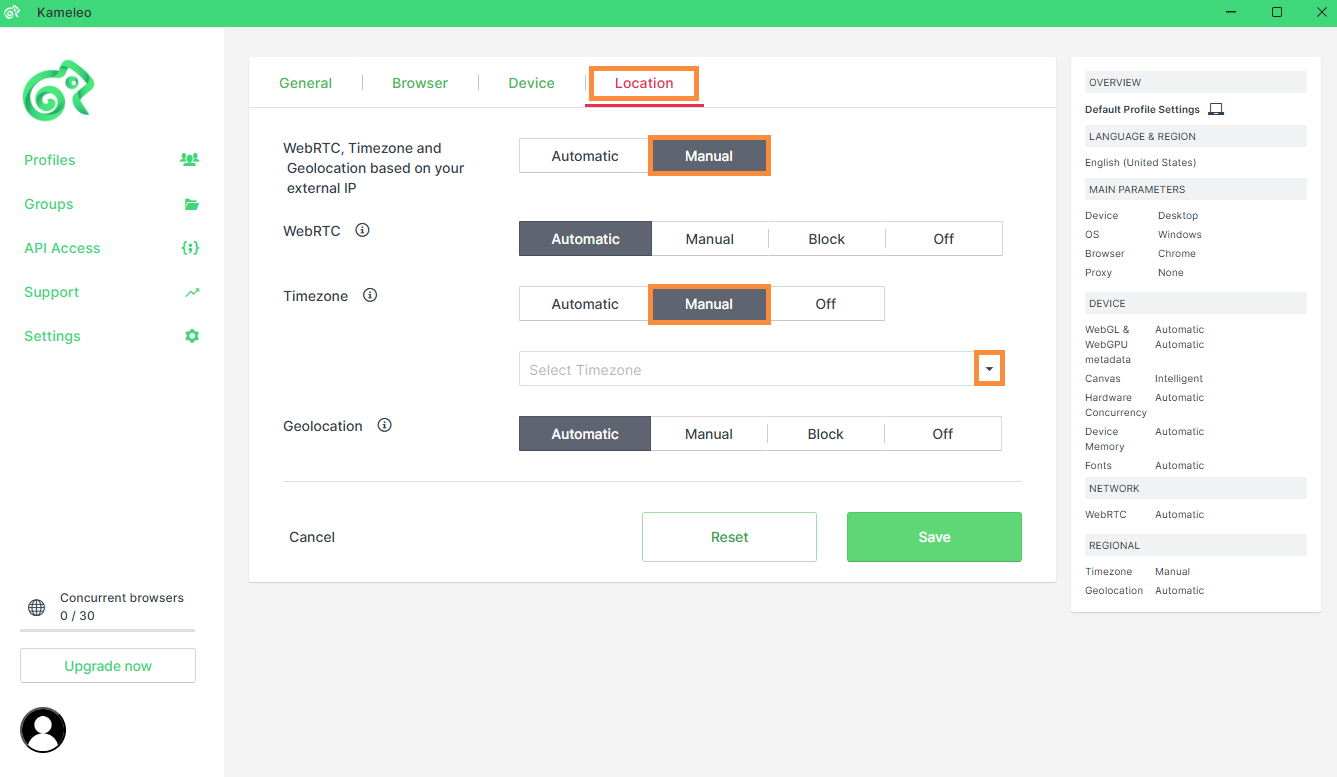
Under the Location section, you will see "WebRTC, Timezone and Geolocation based on your external IP" click on "Manual".
-
Now if you want to select the Timezone yourself, simply click on "Manual" button under Timezone, and then click on the the above outlined dropdown menu and select a Timezone that fits your purpose.
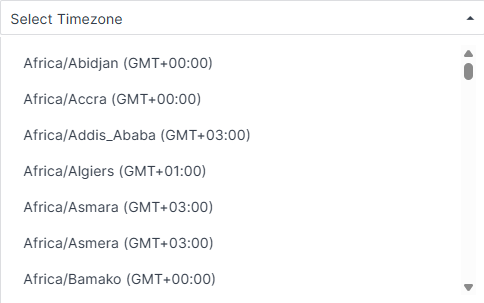
- The Timezone field will be filled by your selected option, where you can proceed by clicking the Save button.

Timezone Spoofing Options
- Automatic (Recommended): Kameleo sets the time zone automatically. If a proxy is used, the time zone will match the proxy’s location.
- Manual: Allows you to select a timezone manually. It must match your proxy’s region to avoid inconsistencies.
- Off: Disables spoofing. Websites will see your real system time zone.
You can watch a short video explaining how time zone spoofing works:
You can set default Timezone spoofing options for all new profiles in the Settings from the left menu.