Registering a Kameleo Account
The registration is done through the Kameleo Registration page. Below is an image that showcases the registration form:

Now, we can proceed by following the instructions on how to proceed:
- Open the Registration Page
- Enter Your Email Address – Fill in your email address in the "E-Mail Address" field. This will be used for account verification and communication.
- Set Your Display Name – A "Display Name" will be automatically generated based on your email, but you can edit this field if you prefer a different name.
- Create a Password – Enter a secure password in the "Password" field. Make sure it meets the security requirements.
-
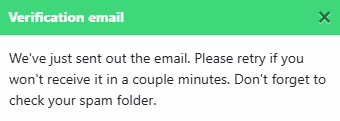
Request Verification Code – Before clicking Register, click the "Get Code" button next to the Verification Code field. This will send a verification code to your email address, which will also trigger a window prompt informing you that the email was sent out.
-
Check Your Email – Look for the verification email in your inbox.
Please be aware that the email may land in your spam/junk folder, so please check there if you don't see it in your main inbox.
Furthermore, if you don't receive the verification code email, wait up to 1 minute, and try to request it again with the "Get Code" button.
- Enter Verification Code – Once you locate the email, copy the verification code and paste it into the "Verification Code" field on the registration form.
- Confirmation – After entering the verification code, click the green "Register" button to complete your account creation.
-
Now you will be greeted with the onboarding questionnaire, which you can either fill out or skip by clicking on the "Skip onboarding" button.
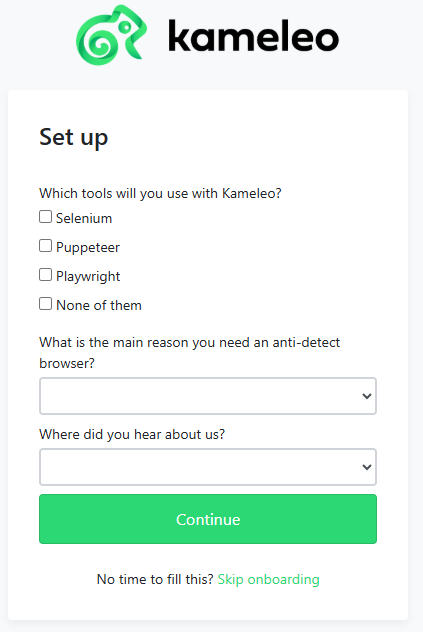
- Completed Registration - With this last step, the registration would be finished, and you would be redirected to a page where you can download Kameleo for your operating system.
We highly encourage all our users to fill out the questionnaire as it gives us valuable information about the needs of our customers.