Using Kameleo with IP2World
Using a proxy provided by IP2World can easily change your IP address. It supports HTTP(S)&Socks5 protocol, and it is a proxy software with first-class service effect and proxy experience. You can enjoy different proxy services at IP2World: Sock5 Residential Proxy & Rotation Residential Proxy.
Socks5 Residential Proxy
-
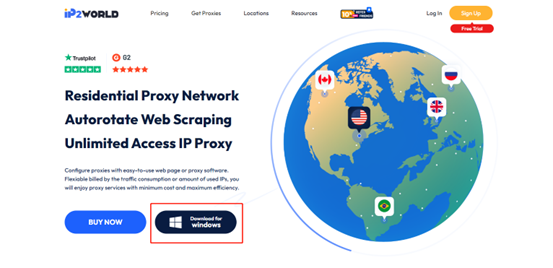
Click on the official website https://www.ip2world.com/ to download the IP2World software.
-
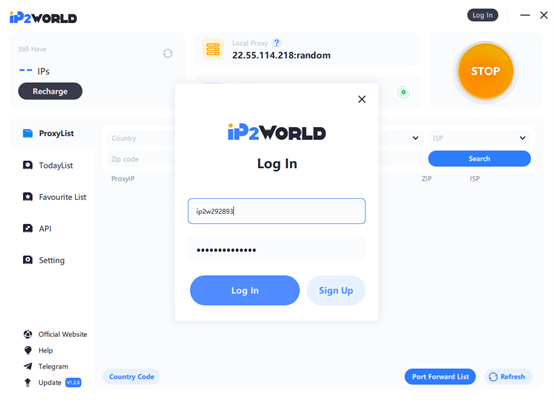
Open the software, enter the account number and password to log in.
-
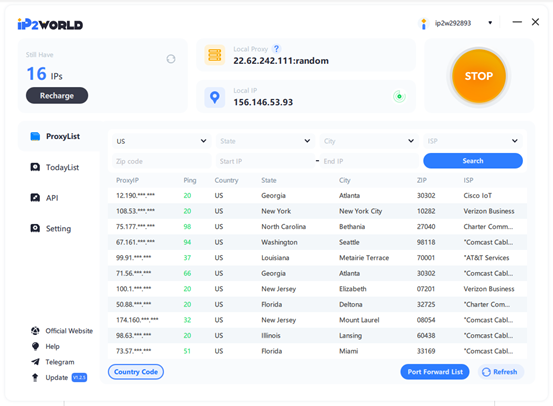
After successfully logging in, click [OPEN], enter the corresponding address in [Country] [State] [City], and click [Search] to obtain the corresponding IP pool.
-
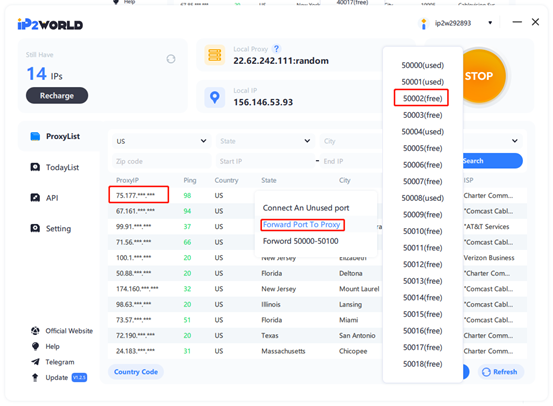
In the ProxyList, select a proxy IP, right-click and use [Forward Port To Proxy] to bind the IP to an unbound port.
-
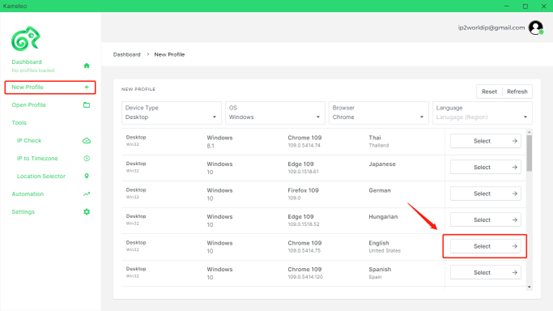
Return to Kameleo, click [New Profile] to add a new browser.
-
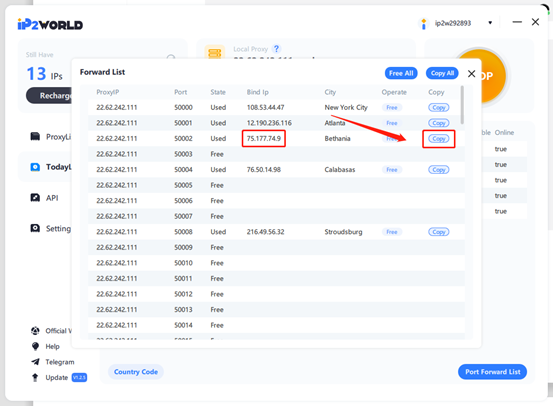
Click [TodayList], find the IP that has just been bound, enter the corresponding port into Kameleo, and click Save. When the test result shows success, click [Start].
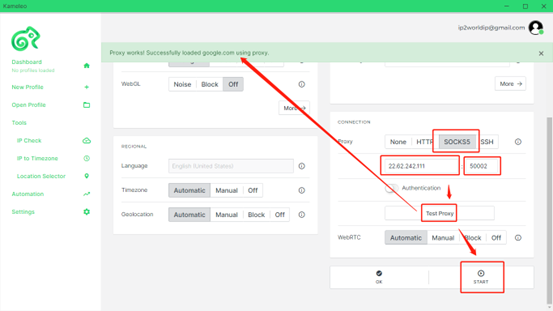
-
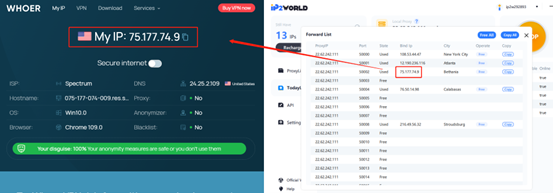
When the IP result tested in the Kameleo browser is consistent with the IP address proxied by IP2World, it means that the proxy is successful.
Rotating Residential Proxy: API Mode
-
Click on the official website https://www.ip2world.com/, log in to your IP2World account after registration. Click [IP Allowlist] to copy and paste the current IP into the input box, and then click [Add To], the local IP will be successfully added to the [IP Allowlist].
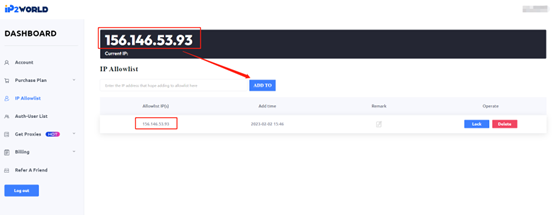
-
Click [Get Proxies] to get the "API" mode in the proxy drop-down box.
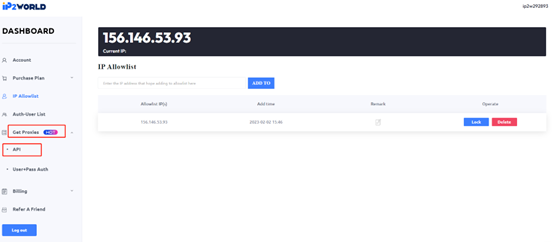
-
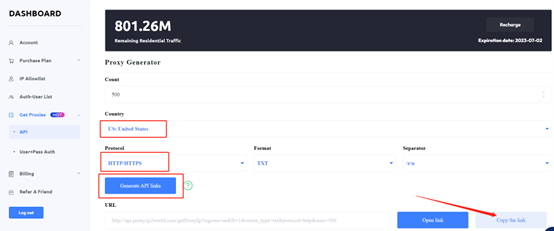
In the API mode, select the [Country] (example is US) and [Protocol] you need, and then click [Generate API Links], copy the API link to any browser and search for the IP list.
-
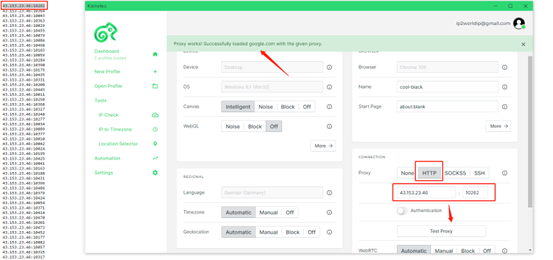
Choose an IP address from the IP list, input it into Kameleo, click [Test Proxy], when the result shows success, click [Start].
-
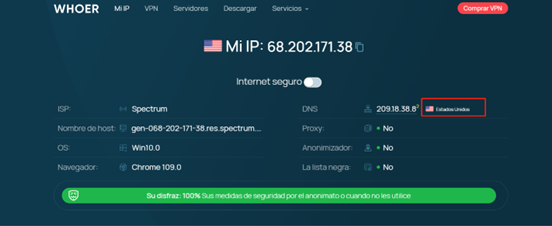
When the IP address is also in the United States, it means that Kameleo is configured successfully.
User + Pass Auth
-
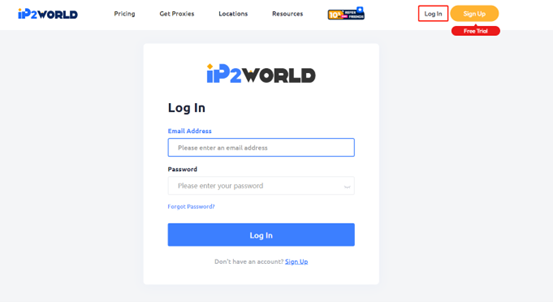
Click on the official website https://www.ip2world.com/, log in to the IP2World account after registration.
-
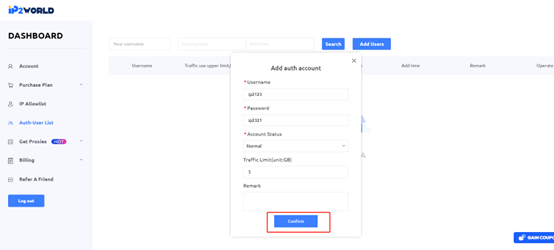
Click [Auth-User List] in your dashboard, and then click [Add Users]. Account Status select normal. You can set the [Traffic Limit] as you like, the example here is 5GB. Then click [Confirm].
Note: The username must contain 6 to 24 letters, digits, underscores. And start with a lowercase English letter.
-
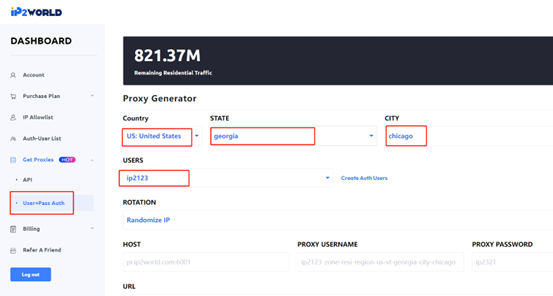
Click [Get Proxies] - [User + Pass Auth]. In this interface, you can choose the [Country] - [STATE] - [CITY] as you need. Select the username you have created. Note: If you need to select other city, please turn off the proxy. After clearing the browser data information, select [Country]-[STATE]-[CITY], and then generate a new [PROXY USERNAME] - [PROXY PASSWORD]
-
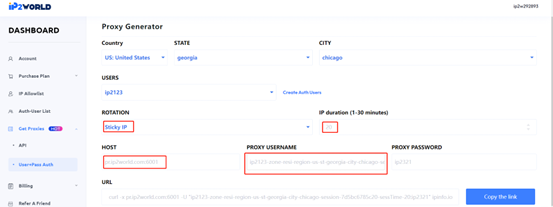
If you need IP rotation, click [Rotation] - [Sticky IP]. And set [IP duration]. Then you will get your proxy info.
-
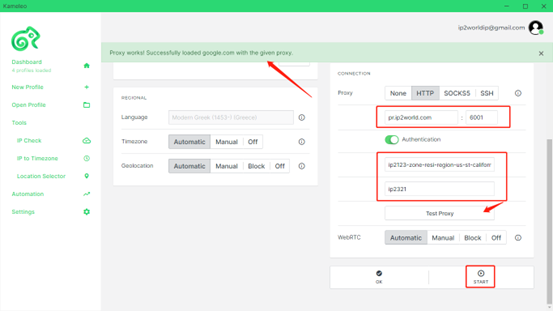
Input [HOST] - [PROXY USERNAME] - [PROXY PASSWORD] into Kameleo, click [Test Proxy], when the result shows success, click [START].
-
When the IP address is also in the United States, it means that Kameleo is configured successfully.